Subtitles out of sync: why, and how to fix it
A subtitle track that starts a second late is annoying. One that drifts further apart every ten minutes is unwatchable. Both have the same handful of causes, and both can be fixed without hunting for another subtitle file.
Why subtitles drift
There are only three common causes, and telling them apart takes ten seconds of watching:
- A constant offset: the subtitles are always the same amount early or late. The file was made for a release with a different opening — a logo, a distributor card, an advert break.
- A growing drift: they start right and are half a minute off by the end. The file was timed for a different frame rate, typically 25 fps against 23.976, and every minute adds a little more.
- A different cut altogether: an extended edition, a version with adverts removed. No shifting will fix this one; the subtitles belong to another film.
Shift them by hand, while you watch
In OndalyTV the comma and full stop keys move the subtitles backwards and forwards while the film plays, and the −/+ buttons next to the subtitle selector do the same with a remote. The value is shown as you change it, so you can nudge until a line lands with the lips.
Let the app line them up for you
In the Windows app, automatic sync listens to a few minutes of the audio, finds where people are actually speaking and shifts the subtitles to match — including the frame-rate drift, which a fixed offset cannot fix.
It runs once when you turn a subtitle track on. If the result is not right, press S in the player to run it again over the part you are watching. It is on by default in Settings › Subtitles, together with the text size and an offset applied to every track.
Automatic sync is part of Premium, in the Windows app. On Android you shift subtitles by hand (free).
When nothing lines up
If neither the automatic sync nor a manual shift makes a line land on the dialogue, the file is for another version of the film. That is not a bug to fight: pick a different subtitle track from your provider, or watch with the one your player offers in the audio language you understand.
Where this is in OndalyTV
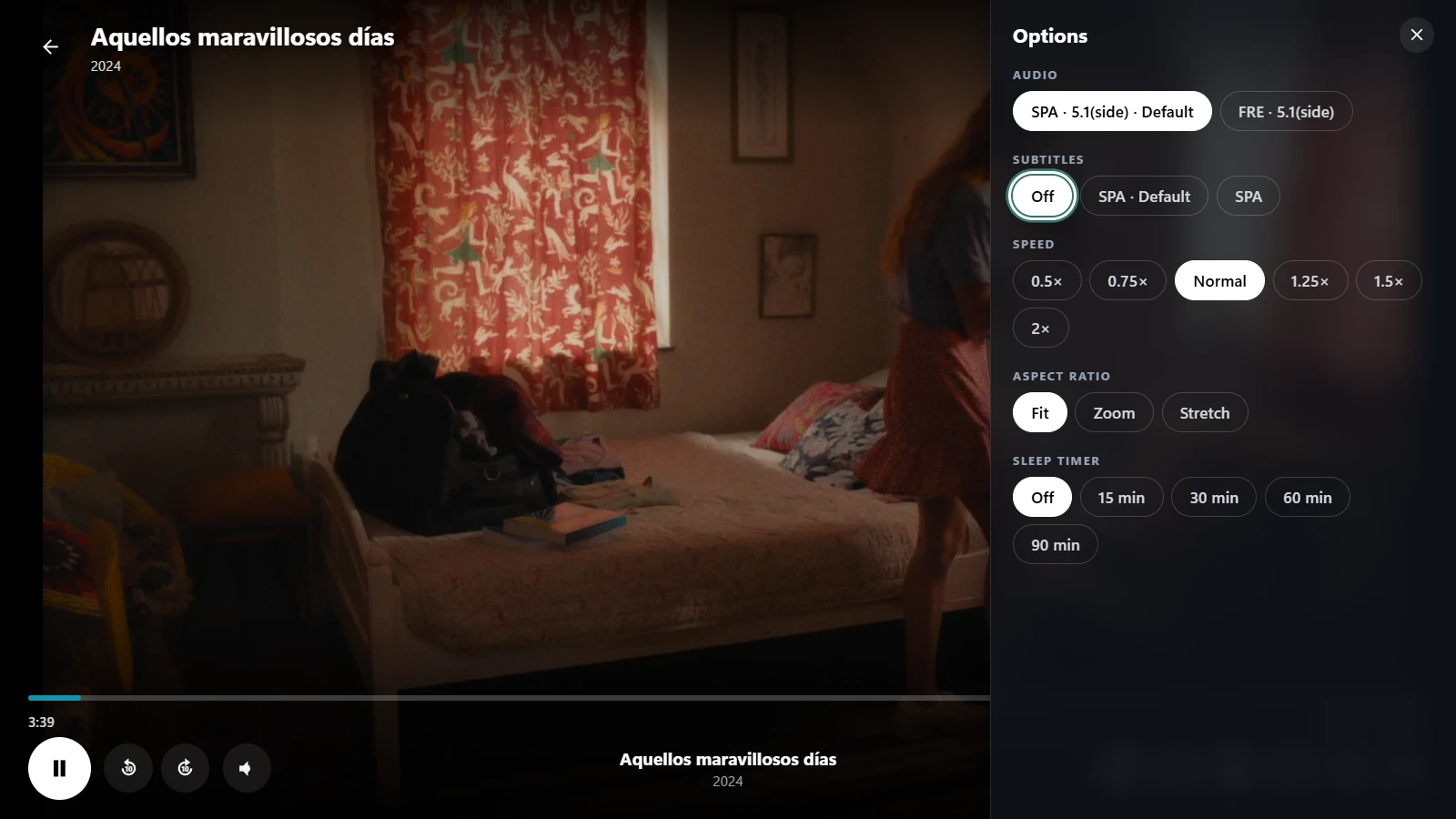
- While watching: the options panel — audio track, subtitle track, sync, speed, aspect ratio and sleep timer.
- Settings › Subtitles: show subtitles by default, automatic sync (Windows), text size, and an offset for every track.
- Automatic sync is part of Premium, in the Windows app. On Android you shift subtitles by hand (free). Choosing tracks and shifting them by hand is free everywhere.
Free player. No channels or content included.